miércoles, 25 de abril de 2012

Desbloqueo con SAM para Baseband 4.11.08 y cualquier otro BaseBand

Para realizar el desbloqueo necesitamos hacer los siguientes pasos:

Paso 1.: Hacer JailBreak al iPhone. Y agregar esta Repo en Cydia: http://repo.bingner.com

Paso2.: Luego instalar el SAM. asegurarse de tener que el SIM instalado en el iPhone.

Unlock 4.11.08 Baseband

Paso 3.:  Despues de tener instalado el SAM, lo abrimos y vamos a Utilities ---> De-Activate iPhone


Deactivate Unlock 

4.: Despues que el SAM esta activdado nos vamos a la pantalla anterior. Luego vamos al Method, seleccionamos By Country and Carrier. Despues el Pais, despues el carrier y finalmente elegimos el SIM ID.

Unlock iPhone 4 baseband 4.11.08

Paso 5.: Luego nos vamos a More Information. Seleccionamos el IMSI de SAM Details y luego pulsamos 'Spoof Real SIM to SAM'.

Paso 6.:  Ahora, regresa a la pantalla principal de la SAM y luego cambiar el 'método' de manual. Ahora, sobreescriba la cadena de IMSI que se guardó en el paso 5.

Paso 7. iTunes debe estar actualizado.
Si utiliza iTunes conecta tu iPhone a la computadora con el fin de reactivar su dispositivo. Basta con hacer doble toque en la actualidad el 'número de teléfono "en la pantalla principal del dispositivo con el fin de asegurarse de que los partidos ICCID con la que presenta en su tarjeta SIM. Si la coincidencia no es exacta, tendrá que empezar de nuevo desde el paso 1.

Paso 8. Ahora, cierra iTunes y desconecte el iPhone 4 y desactivar SAM.

Paso 9. Una vez más conectar el iPhone 4 con iTunes y verás un mensaje que indica que no puede ser activado. Cierre y abra de nuevo.

Paso 10. Las barras de señal le hace saber que el iPhone 4 baseband 4.11.08 ha sido desbloqueado.

Algunos de ustedes podrían experimentar un problema en el paso 7, es posible que se muestra un mensaje: la tarjeta SIM no es compatible. No hay que preocuparse, ya que es una guía para esto también.

Siguiendo estos pasos, usted será capaz de conseguir con éxito el iPhone 4 baseband 4.11.08 de desbloqueo.
 

miércoles, 28 de marzo de 2012

Desbloqueo del BaseBand 4.11.08- Unlock 4.11.08 Baseband with R-SIM

Y regresamos con un post mas sobre el Super Mega famoso BaseBand 4.11.08 que apareció con el IOS 5.0 y 5.0.1.

Ya la historia la sabemos, muchas personas por distintas razones actualizamos a esta versión, dejando nuestros iPhone 4 como un "iPod Touch" hasta la fecha.

Y FINALMENTE, despues de una muuuuuy larga y tortuosa espera, hoy el equipo de R-SIM publican que tienen una solución para este problema.

Con un precio de 59$ incialmente se estaria comercializando R-SIM 4 apartir de 10 dias despues de hoy, aunque ya podemos hacer pre-órdenes aqui:
http://www.eachsupplier.com/r-sim-iv-for-iphone-4-4-11-08-ios-5.html

Pero sin ánimos de descalificar la publicación del UnLock yo recomiendo que esperen las reacciones de quienes lo compre y/o videos que prueben que si funciona el Unlock.

Seria este el fin de lo que ya antes habia llamado La Gran Tortura?
Esperamos que asi sea y puedan revivir todos estos iPhone 4 que han permanecido dorminos por tanto tiempo.

miércoles, 7 de marzo de 2012

Nuevo iPad 3

Apple presenta la nueva iPad

12:48 Schiller al momento de su presentación con la imagen de la nueva tecnología 4G LTE.  4g-ipad.jpg
12:45 La batería de la nueva iPad tendrá 10 horas de vida.
12:42 ¡Aparta el 23 de marzo! Ese día llega la nueva iPad a México. En Estados Unidos estará disponible desde el 16 del mismo mes.
12:41 La nueva versión de la ‘tablet' tiene un grosor de 9.4 milímetros y 1.4 libras de peso. La versión de 16 GB costará 499 dólares.
12:38 La iPad estará disponible con AT&T y Verizon en Estados Unidos.
12:37 La cámara de la nueva iPad tiene detección de rostros y autoenfoque, además de comandos de voz. Tendrá tecnología 4G LTE.
12:36 Phil Schiller explica al público las funciones de la nueva iPad.
 explicacion-funciones-nueva-ipad.jpg
12:33 ¡Llegó el momento esperado! Apple enseña al mundo la nueva iPad.
 la-nueva-ipad.jpg
12:31 Entre las mejoras en comparación con la iPad 2, la nueva versión mejora 44% la saturación de color.
12:30 La iPad tendrá la cámara iSight de 5 megapixeles.
12:28 La nueva iPad tendrá un procesador A5X, dice Schiller.
12:27 La nueva iPad cuenta con la tecnología "retina display" y tiene el mismo cuerpo que las versiones anteriores. La resolución es de 2048 x 1536, 3.1 millones de pixeles, mayor a la de una televisión HD.
12:25 Entra al escenario Phil Schiller, vicepresidente de marketing global de Apple, para hablar sobre la nueva iPad, aún sin nombre.
12:23 Tim Cook ‘ataca' a la Galaxy Tab de Samsung, criticando el uso de aplicaciones como Twitter o Yelp
Se han hecho más de 200,000 ‘apps' para la iPad hasta ahora, presume el CEO de Apple
12:22 La iPad "es la favorita para verificar mails, navegar en la red, jugar videojuegos y leer libros", señala el CEO de Apple
12:19 "Hemos vendido más de 15 millones de iPad en el último cuarto trimestre", dice Cook.
12:18 Tim Cook durante la presentación.
 la-nueva-ipad-tim-cook.jpg
12:17 Tim Cook anuncia una nueva Apple TV, que costará 99 dólares.
12:15 En este momento se presenta un video de la nueva tienda de Apple en Nueva York, específicamente en Grand Central, de Nueva York.
12:14 110 millones de personas visitaron las tiendas físicas de Apple en último cuarto de 2011, presume el CEO de la empresa y en las Apple Store hay actualmente  585,000 aplicaciones y 25,000 millones de descargas.
 25-billion-ventas.jpg
12:12 Tim Cook dice que el iOS es "el sistema operativo móvil más avanzado del mundo", además, Siri llega hoy a Japón.
12:09 Cook presume que Apple tiene actualmente 362 tiendas en todo el mundo; casi una por cada día del año. "Nuestros pies están muy firmes sobre los equipos que aparecerán después de la PC", añade.
12:07 Cook, con la imagen del uso actual que se le da a la iPad.
 
ipad-tim-cook.jpg  
12:06 Apple vendió 172 millones de dispositivos post-PC en 2011, presume el CEO de la empresa.
12:03 Cook, jefe de Apple afirma que la PC ya no es el centro de nuestro mundo digital. "De muchas maneras, la iPad está reinventando el cómputo móvil, más allá de cualquier predicción".
 
apple-tim-cook.jpg  
12:00 Comienza el evento, aparece Tim Cook, CEO de Apple, en el escenario.
11:53 La espera terminó. Apple presenta este miércoles a las 12:00 horas de México la nueva versión de la iPad.
Según información de CNNMoney, la nueva ‘tablet' de la firma de la manzana será la primera en tener tecnología LTE, es decir con capacidad para operar con Internet inalámbrico de alta velocidad.
La tecnología LTE ofrece velocidades de descarga de entre cinco y 12 megabits por segundo, el doble de rapidez de una típica conexión de banda ancha. 
También tendría la tecnología ‘retina display' con resolución de 2048 x 1536.
Si quieres conocer más sobre los rumores de este equipo, consulta aquí.

martes, 6 de marzo de 2012

Especificaciones del iPhone 4S


Color

Blanco
Negro

Capacidad

16 GB
32 GB
64 GB

Dimensiones y peso

Alto: 11,52 cm
Ancho: 5,86 cm
Fondo: 0,93 cm
Peso: 140 gramos

Redes móviles e inalámbricas

  • Teléfono internacional
  • UMTS/HSDPA/HSUPA (850, 900, 1.900, 2.100 MHz);
    GSM/EDGE (850, 900, 1.800, 1.900 MHz)
  • CDMA EV-DO Rev. A (800, 1.900 MHz)3
  • Wi-Fi 802.11b, g, n (802.11n solo a 2,4 GHz)
  • Tecnología inalámbrica Bluetooth 4.0

Localización

  • GPS asistido y GLONASS
  • Brújula digital
  • Wi-Fi
  • Redes móviles

Pantalla

  • Pantalla Retina
  • Multi-Touch panorámica de 3,5 pulgadas (diagonal)
  • Resolución de 960 x 640 píxeles a 326 p/p
  • Relación de contraste de 800:1 (típica)
  • Brillo máximo 500 cd/m2 (típica)
  • Cubierta oleófuga antihuellas en la parte frontal y posterior
  • Compatible con la presentación simultánea de múltiples idiomas y grupos de caracteres

Cámara, fotos y vídeo

  • Cámara de 8 megapíxeles
  • Enfoque automático
  • Enfoque por toque
  • Detección facial en fotografías
  • Flash LED
  • Grabación de vídeo en HD (1080p) hasta 30 fotogramas por segundo con audio
  • Estabilización de vídeo
  • Cámara frontal para fotografías con calidad VGA y vídeo de hasta 30 fotogramas por segundo
  • Geoetiquetado de fotos y vídeos

Botones y conectores externos

Botones y controles externos
Conectores y entradas/salidas

Batería y alimentación4

  • Batería recargable integrada de polímeros de litio
  • Carga por conexión USB con un ordenador o adaptador de corriente
  • Tiempo en conversación: hasta 8 horas con 3G, hasta 14 horas con 2G (GSM)
  • Tiempo en reposo: hasta 200 horas
  • Navegación web: hasta 6 horas con 3G, hasta 9 horas con Wi-Fi
  • Reproducción de vídeo: hasta 10 horas
  • Reproducción de audio: hasta 40 horas

Reproducción
de audio

  • Respuesta de frecuencia: entre 20 y 20.000 Hz
  • Formatos de audio compatibles: AAC (de 8 a 320 Kb/s), AAC protegido (del iTunes Store), HE-AAC, MP3 (de 8 a 320 Kb/s), MP3 VBR, Audible (formatos 2, 3 y 4, Audible Enhanced Audio, AAX y AAX+), Apple Lossless, AIFF y WAV
  • Límite de volumen configurable por el usuario

TV y vídeo

  • Compatibilidad con la Duplicación de AirPlay en el Apple TV a 720p
  • Compatibilidad con vídeo en espejo y salida de vídeo: hasta 1080p con el Adaptador AV digital de Apple o el Adaptador VGA de Apple (se venden por separado)
  • Compatibilidad con salida de vídeo a 576p y 480p con el Cable Apple de AV por componentes; 576i y 480i con el Cable Apple de AV compuesto (se venden por separado)
  • Formatos de vídeo compatibles: vídeo H.264 de hasta 1080p, 30 fotogramas por segundo, perfil alto (High Profile) de nivel 4.1 con sonido AAC-LC de hasta 160 Kb/s a 48 kHz y estéreo en los formatos de archivo .m4v, .mp4 y .mov; vídeo MPEG-4 de hasta 2,5 Mb/s, 640 por 480 píxeles, 30 fotogramas por segundo, perfil simple (Simple Profile) con sonido AAC-LC de hasta 160 Kb/s por canal a 48 kHz y estéreo en los formatos de archivo .m4v, .mp4 y .mov; Motion JPEG (M-JPEG) de hasta 35 Mb/s, 1.280 por 720 píxeles, 30 fotogramas por segundo, sonido en ulaw y estéreo PCM en el formato de archivo .avi

Auriculares

  • Auriculares de Apple con mando y micro
  • Respuesta de frecuencia: entre 20 y 20.000 Hz
  • Impedancia: 32 ohmios

Adjuntos
de correo
compatibles

Tipos de documento visibles:

.jpg, .tiff y .gif (imágenes); .doc y .docx (Word de Microsoft); .htm y .html (páginas web); .key (Keynote); .numbers (Numbers); .pages (Pages); .pdf (Vista Previa y Acrobat de Adobe); .ppt y .pptx (PowerPoint de Microsoft); .txt (texto); .rtf (formato de texto enriquecido); .vcf (información de contacto); y .xls y .xlsx (Excel de Microsoft)

Sensores

  • Giroscopio de tres ejes
  • Acelerómetro
  • Sensor de proximidad
  • Sensor de luz ambiental

Requisitos del sistema

  • ID de Apple (para algunas prestaciones)
  • Acceso a Internet5
  • Para sincronizar con iTunes en un Mac o PC:
    • Mac: OS X 10.5.8 o posterior
    • PC: Windows 7, Vista o XP, Home o Professional, con Service Pack 3 o posterior
    • iTunes 10.5 o posterior (descarga gratuita desde www.itunes.com/es/download)

Requisitos ambientales

  • Temperatura de funcionamiento: entre 0 y 35 °C
  • Temperatura de almacenamiento: entre -20 y 45 ºC
  • Humedad relativa: del 5 al 95% sin condensación
  • Altitud máxima de funcionamiento: 3.000 m

Idiomas

Idiomas compatibles

Alemán, árabe, catalán, checo, chino tradicional, chino simplificado, coreano, croata, danés, eslovaco, español, finés, francés, griego, hebreo, húngaro, indonesio, inglés (de Estados Unidos y del Reino Unido), italiano, japonés, malayo, neerlandés, noruego, polaco, portugués (de Portugal y de Brasil), rumano, ruso, sueco, tailandés, turco, ucraniano y vietnamita.

Idiomas de teclado compatibles

Alemán (de Alemania y de Suiza), árabe, búlgaro, catalán, checo, cherokee, chino tradicional (manual, pinyin, zhuyin, cangjie y Stroke), chino simplificado (manual, pinyin y Stroke), coreano, croata, danés, emoji, eslovaco, español, estonio, finés, flamenco, francés (de Francia, de Canadá y de Suiza), griego, hawaiano, hebreo, hindi, húngaro, indonesio, inglés (de Estados Unidos y del Reino Unido), islandés, italiano, japonés (romaji y kana), letón, lituano, macedonio, malayo, neerlandés, noruego, polaco, portugués (de Portugal y de Brasil), rumano, ruso, serbio (cirílico y latino), sueco, tailandés, tibetano, turco, ucraniano y vietnamita.

Idiomas de diccionario compatibles (admite la predicción de texto y la corrección automática)

Alemán, árabe, catalán, checo, cherokee, chino simplificado, chino tradicional, coreano, croata, danés, eslovaco, español, estonio, finés, flamenco, francés (de Francia, de Canadá y de Suiza), griego, hawaiano, hebreo, hindi, húngaro, indonesio, inglés (de Estados Unidos y del Reino Unido), italiano, japonés (romaji y kana), letón, lituano, malayo, neerlandés, noruego, polaco, portugués (de Portugal y de Brasil), rumano, ruso, sueco, tailandés, turco, ucraniano y vietnamita.

Idiomas de Siri

Alemán, inglés (Estados Unidos, Reino Unido y Australia) y francés.

Contenido
de la caja

  • iPhone 4S
  • Auriculares de Apple con mando y micro
  • Cable de conector Dock a USB
  • Adaptador de corriente USB
  • Documentación

lunes, 5 de marzo de 2012

iPhone 4 Baseband 4.11.08 - La Gran Tortura.

Hoy por hoy miles de personas esperan con ansias el UnLock para el BaseBand 4.11.08 despues de haber actualizado entuyendo que por desinformación de las posible consecuencias al IOS 5.0 o 5.0.1!

Se han formado muchas nubes al respecto, muchos páginas tratanto de estafar a quienes tienen esta situación.

Las esperanzas de casi todos estan puestas en una posible GeveySim 2 que por fin liberar y traerá nuevamente a la vida a todos estos iPhone que descansan en algun lugar de nuestras casas.

Algunos plantean la posibilidad de desbloquear por IMEI:
http://liberariphone4.info/#

Otros dicen poder hacer un DownGrade:
http://www.howtoarena.com/downgrade-baseband-4-11-08-to-4-10-01-on-iphone-4/
Aunque por desgracia ya no es posible, debido a que apple ya no firma la version 4.3.5 del IOS !

La empresa ApplenBerry publicó en su pagina oficial ( http://applenberry.com/  ) el siguiente mensaje:
The Unlock for iPhone 4 baseband(modem firmware) 4.11.08 is under development.

Muy esperanzado el mensaje pero aun no se puede liberar el BaseBand 04.11.08 !!

Esperamos que en los próximos dias podamos cantar Victoria y POR FIN tener el UnLock para todos los que subyasen en esta incómoda situación !!


Jailbreak iOS 5 On iPhone 4, 3GS, iPad, iPod touch Using Redsn0w 0.9.9b5 [Final Version How-To Video Tutorial]

Due to the extensive work put in by the jailbreak community, we’ve the luxury nowadays of a tether-jailbreak being released simultaneously to the update, and Apple’s latest and greatest version of iOS is no exception.
iOS 5 pwned 2
Those of you who have – or are planning to – upgrade to iOS 5 might be pleased to learn that it can be jailbroken (tethered for now), allowing you to add all of those hacks and tweaks you know and love.


Jailbreak iOS 5 final
It has been queried on numerous occasions, with Apple going the whole nine yards in terms of updates, as to whether there would even be any need to jailbreak anymore. After all, unless you’re simply stealing apps and games, most of the Cydia tweaks regarding Safari, notifications, SMS etc have all been improved upon, right?
Well, while the improvements may appease many into sticking with stock, it’s important to remember that there are some jailbreak apps that just won’t make it to the Cupertino company’s default software bundle. SBSettings is a prime example, bringing control of your iDevice’s vital features using a simple activation method.
Thanks to the work of the iPhone Dev-Team, you can tether-jailbreak your iOS 5 device using Redsn0w 0.9.9b5 by following this simple tutorial.
From the iPhone Dev-Team Blog:
With today’s official iOS5 release, redsn0w has been updated to 0.9.9b5 to include the public URLs for the IPSW files.  This way, first-time iOS5 jailbreakers don’t need to supply the IPSW file manually.  It’s still a tethered jailbreak on all except the old-bootrom iPhone3GS, and it doesn’t apply to iPad2 or the upcoming iPhone4S.
Because the jailbreak is currently only tethered for most devices, we’re not going to release a new PwnageTool yet.  Instead, we’ve decided to build some of PwnageTool’s functionality into redsn0w (since you need redsn0w to “Just boot tethered” on every power cycle anyway).  The new “Custom IPSW” button on the Extras screen will create a custom IPSW without the baseband update for 4.3.3 or 5.0gm (iPhone3GS and iPhone4 only, for now).  Remember not to accidentally restore to the stock IPSW after you create the custom one!  The custom one begins with NO_BB_ (for “no baseband”).
You must enter “Pwned DFU” mode before trying to use the NO_BB_ IPSW with iTunes (and your hosts file cannot be pointing to Cydia’s servers due to the new blob nonce mechanism they’re using in iOS5).
Version 0.9.9b5 is available only for Mac for now, until we can do more testing on the Windows version of “Custom IPSW”.
We’re currently working on a normal compatibility update for existing ultrasn0w unlockers.  After that we’ll try to fix the iBooks issue on jailbroken iOS5.
Things to remember:
  • This will not work with iPad 2, nor the iPhone 4S.
  • This is a tethered jailbreak, meaning that it will require you to connect the phone to a computer running Redsn0w whenever you power up the phone.
  • As has been the case before, by pursuing the tethered route, if and when an untethered jailbreak does surface, the chances are you’ll have to restore in order to utilize it.
With that out of the way, let’s get started!
Step 1: Download and install the new iTunes 10.5 on your Windows PC or Mac. Connect your iOS device with your computer and make sure you make a backup of everything.
NOTE: Those of you who rely on Gevey SIM or Ultrasn0w unlock should skip to “For Unlockers Only” section found at the bottom.
Step 2: Now upgrade your iOS device to the final version of iOS 5 using iTunes 10.5 on your Windows PC or Mac. Download links for final version of iOS 5 can be found here.
Step 3: Download the new Redsn0w 0.9.9b5 for Mac or Windows.
Screen Shot 2011-10-13 at 8.05.39 AM
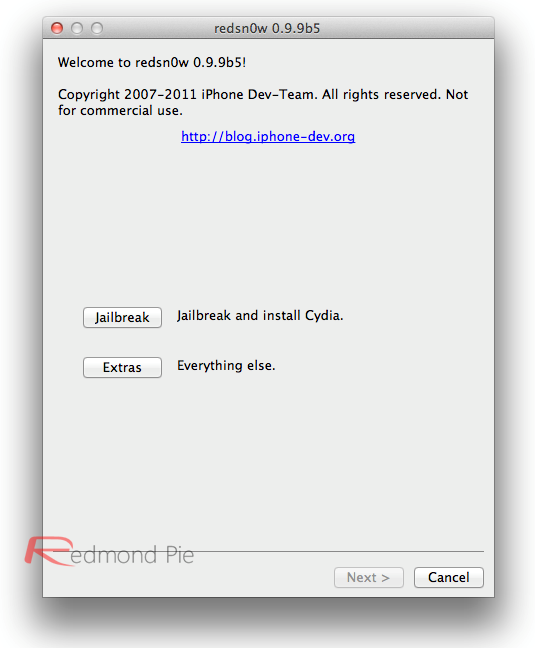
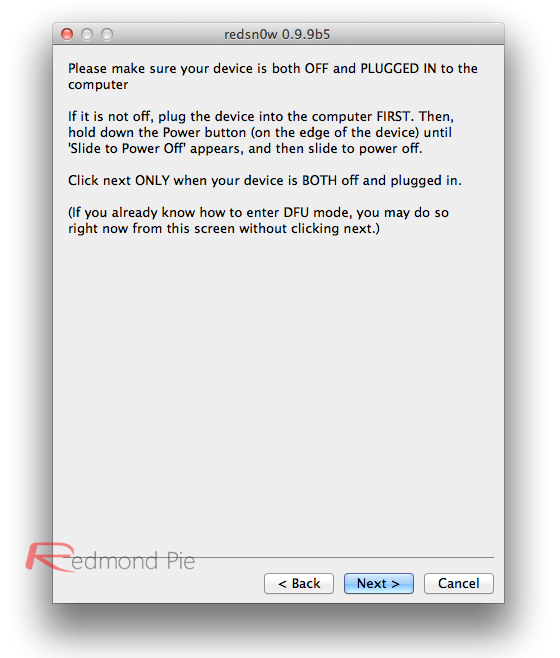
Step 4: Click on the “Jailbreak” option, select “Install Cydia” and follow the onscreen instructions to enter DFU mode. Once you’re in DFU mode, Redsn0w will perform the jailbreak (without having to have you select the IPSW file manually! YES, the new Redsn0w can fetch all the required files automatically from Apple’s servers).
Screen Shot 2011-10-13 at 8.06.03 AM
Booting into Tethered-Jailbreak Mode:
Step 4:
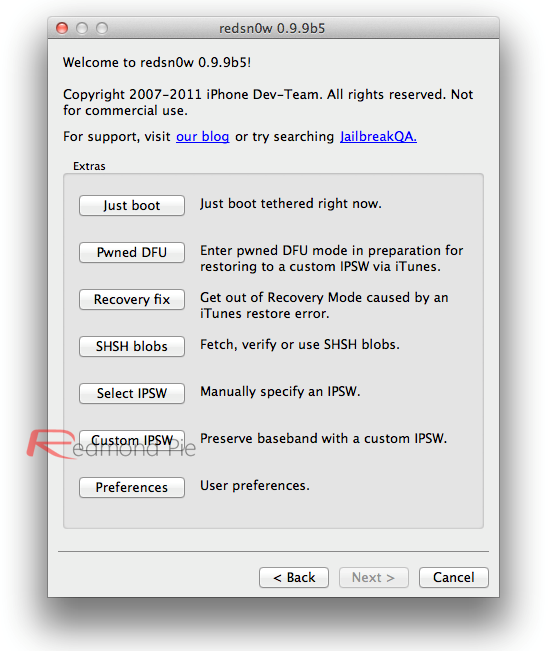
Once you’ve installed Cydia, you will need to boot the device into a tethered jailbroken state. Go into DFU mode, and then in “Extras”, opt for “Just Boot”. Redsn0w will subsequently boot your device as tethered. Note: Due to the nature of this jailbreak, you will have to repeat this booting sequence every time you wish to reboot your device.
Screen Shot 2011-10-13 at 8.05.49 AM
For Unlockers Only:
If you rely on a Gevey SIM or Ultrasn0w (for old basebands only) unlock, DO NOT update to the stock firmware update offered by iTunes. Instead, use this latest version of Redsn0w to cook a custom firmware file without the upgraded baseband so that you can unlock it with Ultrasn0w or Gevey SIM. To do this, click on “Extras” option and then select “Custom IPSW” option. Select the required iOS 5 IPSW firmware file, and let Redsn0w make the custom firmware for you. Once done, enter Pwned DFU mode by selecting “Pwned DFU” from Redsn0w’s Extras option, and then restore to this custom firmware using iTunes. Once done, unlock your iPhone using Gevey SIM, or the updated Ultrasn0w.
Alternatively, unlockers can also use Sn0wbreeze for jailbreaking iPhone on iOS 5 with preserved baseband.

If p0sixninja’s revelation at MyGreatFest, backed up by i0n1c’s recent tweets are anything to go by, we could have a very swiftly released untethered jailbreak. Without giving too much away, i0n1c told us that an untethered solution was "covered", so we now await news from the Chronic Dev Team – the group behind the Greenpois0n 4.2.1 – with great excitement and anticipation.
If and when iOS 5 gets an untethered jailbreak, we’ll have it covered from top to bottom here at Redmond Pie, so stay tuned!
UPDATE x1: The new Redsn0w 0.9.9b7 for both Windows and Mac brings much faster jailbreak by “no longer stashing the application” during the jailbreak process. This has helped in reducing the complete jailbreak time by 60% (from 210 seconds to 80 seconds). We have updated the above download links for Redsn0w.
You may also be interested in:
You can follow us on Twitter or join our Facebook fanpage to keep yourself updated on all the latest from Microsoft, Google and Apple.

lunes, 26 de diciembre de 2011

Downgrade iOS 5 To 4.3.3, 4.3.5 On iPhone 4, 3GS, iPad 2, iPad 1, iPod touch [How To Tutorial]

With final version of iOS 5 now available, there’s no surprise that many of you might be looking to upgrade your iPod touch, iPad or iPhone as soon as possible, but there are often reasons not to upgrade, such as the availability of certain jailbreak tweaks and last-minute bugs that might have slipped by Apple’s testing. If you have already upgraded, good news: you can downgrade your device back to iOS 4.3.5, 4.3.4, 4.3.3, 4.3.2, or 4.3 in a matter of minutes. Don’t know where to start? Then read on.

Cydia
Due to the security checks that Apple has implemented over the years, it’s just not possible to install an old version of iOS once a new version is out to public on a device without a workaround. In order for this to work, you must have previously backed up SHSH blobs for the version of iOS you’re trying to downgrade to. If you’re still on an old version of iOS, we recommend you run a tool such as iFaith before you upgrade in order to back-up your blobs.
Once you’re sure you have what you need just follow the easy steps below.
Step 1: If you haven’t already, download the version of the iOS firmware you’re planning to downgrade to, which should be in the form of an IPSW file. For your convenience, we have placed the relevant download links below:
Step 2: Put your device into DFU mode – this will allow you to make some necessary changes in order to downgrade the system. In order to do this, turn your device completely off, press and hold the Power and Home buttons (simultaneously) for 10 seconds, then release the Power button but keep holding the Home button for 10 more seconds. If you’ve entered DFU mode successfully, your screen should now be blank (it shouldn’t display the iTunes logo), otherwise just repeat this step. It might take several tries to get it right.
Step 3: We now must trick iTunes into accepting an old firmware by preventing it from connecting to Apple’s servers. In order to do this, launch Explorer (on Windows) or Finder (on OS X) and navigate to \Windows\System32\drivers\etc\ on Windows and /etc/ on the Mac. Locate a file named hosts and open it with your favorite text editor. Remember that you’re advised to back it up before making any changes.
 
Add the following line to the hosts file and save it, as shown below:
74.208.105.171 gs.apple.com

Step 4: Launch iTunes, select your device from the program’s sidebar and restore your device to the old firmware you’ve selected earlier. In order to do this, hold the Alt key (if you’re using OS X) or Shift (if you’re on Windows) on your keyboard, press the "Restore" button on iTunes and navigate to the desired firmware file.
Note: You might get a 1013 error during this process, which is entirely normal, throwing your device into recovery mode.
iPhone42
iOS 4.2.1 Recovery Mode
In order to get out of this, download TinyUmbrella (Windows, Mac) or Fix Recovery (Windows, Mac). From either one of them, select "Exit Recovery" to go back to normal mode.

You’re done! You should now be running an old version of iOS! If you have downgraded to iOS 4.3.3, you can simply follow our guide posted here on how to jailbreak (full untethered) iOS 4.3.3 using JailbreakMe 3.0. For iOS 4.3.5, you can follow the steps posted here to tether-jailbreak your device using Redsn0w.
You can follow us on Twitter or join our Facebook fanpage to keep yourself updated on all the latest from Microsoft, Google and Apple.

Jailbreak iOS 5 On iPhone 4, 3GS, iPad, iPod touch Using Redsn0w 0.9.9b5 [Final Version How-To Video Tutorial]

Due to the extensive work put in by the jailbreak community, we’ve the luxury nowadays of a tether-jailbreak being released simultaneously to the update, and Apple’s latest and greatest version of iOS is no exception.

iOS 5 pwned 2
Those of you who have – or are planning to – upgrade to iOS 5 might be pleased to learn that it can be jailbroken (tethered for now), allowing you to add all of those hacks and tweaks you know and love.


Jailbreak iOS 5 final
It has been queried on numerous occasions, with Apple going the whole nine yards in terms of updates, as to whether there would even be any need to jailbreak anymore. After all, unless you’re simply stealing apps and games, most of the Cydia tweaks regarding Safari, notifications, SMS etc have all been improved upon, right?
Well, while the improvements may appease many into sticking with stock, it’s important to remember that there are some jailbreak apps that just won’t make it to the Cupertino company’s default software bundle. SBSettings is a prime example, bringing control of your iDevice’s vital features using a simple activation method.
Thanks to the work of the iPhone Dev-Team, you can tether-jailbreak your iOS 5 device using Redsn0w 0.9.9b5 by following this simple tutorial.
From the iPhone Dev-Team Blog:
With today’s official iOS5 release, redsn0w has been updated to 0.9.9b5 to include the public URLs for the IPSW files.  This way, first-time iOS5 jailbreakers don’t need to supply the IPSW file manually.  It’s still a tethered jailbreak on all except the old-bootrom iPhone3GS, and it doesn’t apply to iPad2 or the upcoming iPhone4S.
Because the jailbreak is currently only tethered for most devices, we’re not going to release a new PwnageTool yet.  Instead, we’ve decided to build some of PwnageTool’s functionality into redsn0w (since you need redsn0w to “Just boot tethered” on every power cycle anyway).  The new “Custom IPSW” button on the Extras screen will create a custom IPSW without the baseband update for 4.3.3 or 5.0gm (iPhone3GS and iPhone4 only, for now).  Remember not to accidentally restore to the stock IPSW after you create the custom one!  The custom one begins with NO_BB_ (for “no baseband”).
You must enter “Pwned DFU” mode before trying to use the NO_BB_ IPSW with iTunes (and your hosts file cannot be pointing to Cydia’s servers due to the new blob nonce mechanism they’re using in iOS5).
Version 0.9.9b5 is available only for Mac for now, until we can do more testing on the Windows version of “Custom IPSW”.
We’re currently working on a normal compatibility update for existing ultrasn0w unlockers.  After that we’ll try to fix the iBooks issue on jailbroken iOS5.

Things to remember:
  • This will not work with iPad 2, nor the iPhone 4S.
  • This is a tethered jailbreak, meaning that it will require you to connect the phone to a computer running Redsn0w whenever you power up the phone.
  • As has been the case before, by pursuing the tethered route, if and when an untethered jailbreak does surface, the chances are you’ll have to restore in order to utilize it.
With that out of the way, let’s get started!
Step 1: Download and install the new iTunes 10.5 on your Windows PC or Mac. Connect your iOS device with your computer and make sure you make a backup of everything.
NOTE: Those of you who rely on Gevey SIM or Ultrasn0w unlock should skip to “For Unlockers Only” section found at the bottom.
Step 2: Now upgrade your iOS device to the final version of iOS 5 using iTunes 10.5 on your Windows PC or Mac. Download links for final version of iOS 5 can be found here.
Step 3: Download the new Redsn0w 0.9.9b5 for Mac or Windows.


Screen Shot 2011-10-13 at 8.05.39 AM

Step 4: Click on the “Jailbreak” option, select “Install Cydia” and follow the onscreen instructions to enter DFU mode. Once you’re in DFU mode, Redsn0w will perform the jailbreak (without having to have you select the IPSW file manually! YES, the new Redsn0w can fetch all the required files automatically from Apple’s servers).
Screen Shot 2011-10-13 at 8.06.03 AM
Booting into Tethered-Jailbreak Mode:
Step 4:
Once you’ve installed Cydia, you will need to boot the device into a tethered jailbroken state. Go into DFU mode, and then in “Extras”, opt for “Just Boot”. Redsn0w will subsequently boot your device as tethered. Note: Due to the nature of this jailbreak, you will have to repeat this booting sequence every time you wish to reboot your device.
Screen Shot 2011-10-13 at 8.05.49 AM
For Unlockers Only:
If you rely on a Gevey SIM or Ultrasn0w (for old basebands only) unlock, DO NOT update to the stock firmware update offered by iTunes. Instead, use this latest version of Redsn0w to cook a custom firmware file without the upgraded baseband so that you can unlock it with Ultrasn0w or Gevey SIM. To do this, click on “Extras” option and then select “Custom IPSW” option. Select the required iOS 5 IPSW firmware file, and let Redsn0w make the custom firmware for you. Once done, enter Pwned DFU mode by selecting “Pwned DFU” from Redsn0w’s Extras option, and then restore to this custom firmware using iTunes. Once done, unlock your iPhone using Gevey SIM, or the updated Ultrasn0w.
Alternatively, unlockers can also use Sn0wbreeze for jailbreaking iPhone on iOS 5 with preserved baseband.

jueves, 15 de diciembre de 2011

Demo del Cubo de Rubik - Rep. Dom.

Una pequeña demostración sin explicación de como formar el Cubo de Rubik !

Crean y Modificando Registros de Windows Desde Delphi XE 2010- Parte 2

En esta entrada presento la forma de como manipular los Registros de Windows desde Delphi XE 2010 en su Segunda parte!

Crean y Modificando Registros de Windows Desde Delphi XE 2010- Parte 1

En esta entrada presento la forma de como manipular los Registros de Windows desde Delphi XE 2010 en su primera parte!

OnDelete Cascade SQL Server 2005 / 2008

En este video muestro de forma sencilla como optimizar nuestras bases de datos en SQL, utilizando el On Delete Casade.

domingo, 13 de noviembre de 2011

Manejar archivos .XML en Delphi XE 2 - FireMonkey

En este video muestro de una manera muy sencilla como manipular un archivo .XML en Delphi XE2 FireMonkey !!!